
The fastest path from Figma to Roblox is a Figma export plugin paired with a Studio-side importer, not a manual rebuild. Start with FigBloxUI or RoImport for fidelity, or UImporter for direct push into StarterGui, and check Bloxig if you need generated interaction code instead of a static frame. The real tradeoff isn't speed, it's whether your output looks right or actually works right.
TL;DR:
- For high fidelity and interactive elements, RoImport and FigBloxUI offer the best results, but they require manual wiring for functionality.
- Batch processing and recurring updates are better supported by tools like RoImport or UImporter, which facilitate reimporting without rebuilding from scratch.
- Visual mismatches often come from unsupported effects, font substitutions, and auto-layout differences, requiring manual adjustments post-import.
- Exporting complex or animated UI designs remains challenging, with current tools unable to translate transitions or dynamic elements automatically.
- For teams needing live updates, CI/CD integration, or automation, a full toolchain like Web2Luau provides more scalable, offline, and automated workflows.
Table of Contents
- What Are the Best Figma to Roblox Tools Right Now?
- How Do I Choose the Right Figma to Roblox Workflow?
- How Do You Export a Figma Frame Into Roblox Studio?
- Why Doesn't My Roblox Import Look Like My Figma Design?
- When Should You Move Past Plugins to a Full Toolchain?
- Is Any of This Free? Figma to Roblox Pricing Explained
- Which Figma to Roblox Tool Produces the Best Output?
- A Simple Case Study: Settings Menu From Figma to Studio
- Building UIs That Actually Follow Roblox's Constraints
- Keeping Your Roblox UI in Sync After the First Import
- Where to Get Help When a Plugin Doesn't Behave
- Can Figma to Roblox Tools Handle Animation?
- When to Automate Versus Rebuild by Hand
- Need Live Reload and CI/CD Instead of Plugin Juggling?
- Sources
- FAQ
What Are the Best Figma to Roblox Tools Right Now?
Every plugin in this space solves the same basic problem: Roblox Studio doesn't understand Figma files, so something has to translate frames, text, and vectors into Frame, TextLabel, and ImageLabel instances. How well each tool does that, and whether it stops at pixels or goes further into behavior, is where they split apart.
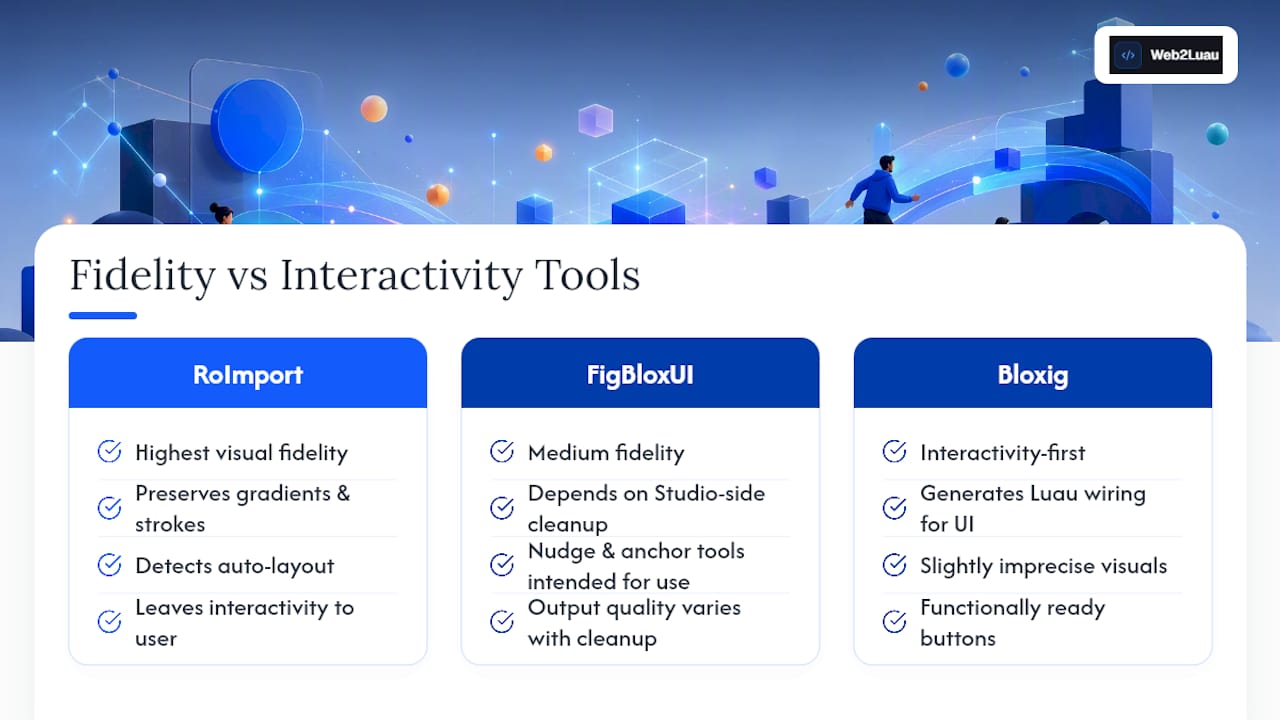
RoImport converts Figma frames into Roblox GUI objects while preserving text, images, gradients, strokes, layout, and sizing, and it ships both a Figma plugin and a Roblox Studio companion. It also supports batch processing, which matters if you're pushing through a full settings menu or an entire HUD system in one pass rather than one frame at a time.
FigBloxUI takes a different angle. Instead of trying to nail the export in one shot, it gives you Studio-side tools after the import lands: nudge and anchor controls, plus class conversion so a generic frame becomes the right Roblox instance type without you manually recreating it.
Bloxig is the outlier. It's a research project that exports Figma to a neutral JSON, runs it through a web AI service to detect interactive elements by structure and position, then generates Luau to wire those elements so the imported UI can actually be clicked, not just looked at.
UImporter pushes frames directly into StarterGui using a session-based workflow, which suits designers iterating quickly between Figma and Studio without re-exporting files each time.
Generic Figma Community plugins round out the field, exporting .rbxmx or JSON files you drag straight into Studio. Fast, simple, and fine for a prototype, less so for a production design system.
Pick FigBloxUI or RoImport when visual accuracy is the priority and you're comfortable wiring buttons yourself afterward. Pick Bloxig when you'd rather let a pipeline attempt the wiring, even if it's less polished. Pick a generic community plugin only for a quick one-off mockup you'll throw away in a week.
How Do I Choose the Right Figma to Roblox Workflow?
Not every project needs the same pipeline. A single settings menu you'll build once is a different problem than a live-ops game shipping UI updates every sprint.
Run through these questions before picking a tool:
- How much fidelity do you actually need? A prototype for a pitch deck tolerates font substitution; a shipped game does not.
- Do you need interactivity out of the box, or are you fine wiring buttons manually? This is the single biggest fork in the road between the tools above.
- How often will this design change? One-time export favors a simple plugin. Recurring updates favor a tool with reimport or merge support, since RoImport's batch processing and UImporter's reimport mode both save real time here.
- Who's doing the import, a designer or an engineer? Studio-side tools like FigBloxUI's nudge and anchor controls assume someone comfortable in Studio, not just in Figma.
- What are your licensing and offline constraints? Some workflows require Open Cloud API keys and internet access; others are pure file drag-and-drop.
Before committing, check the plugin's own documentation for how it handles image uploads (does it need Open Cloud?), what "merge" or "reimport" actually means in practice, and whether any Studio settings, like enabling HTTP requests, need to be turned on manually.
Pro Tip: Test with your ugliest, most complex frame first, not your cleanest one. A tool that handles nested auto-layout and gradient strokes well on a messy screen will handle everything else fine. The reverse assumption gets teams burned mid-project.
Red flag for production use: a tool with no documented update path. If you can't tell how it handles design changes after the first import, budget extra time to redo the work by hand later.
How Do You Export a Figma Frame Into Roblox Studio?
The core workflow is consistent across most tools, even though the exact export format changes.
Prerequisites first. Install the Figma plugin and its Roblox Studio counterpart. Some tools, like UImporter, require enabling HTTP requests in Studio settings and linking a Roblox Open Cloud API key for image uploads and direct push. Others need nothing more than Studio's default settings.
Once you're set up, the steps look like this:
- Clean up your Figma frame: name layers clearly, flatten unnecessary groups, and confirm auto-layout is applied where you want responsive behavior.
- Tag or label interactive elements if your tool supports it (Bloxig relies on structural detection, but clear naming still helps accuracy).
- Choose your export method:
.rbxmxfile, JSON export, or a direct push session, depending on the plugin. - In Studio, either drag in the file or run the companion plugin to pull the pushed data into your place.
- Check the imported hierarchy against your original frame for missing layers or reordered elements.
- Test scaling on a different screen size, since Roblox's
UIScaleand anchor points behave differently from Figma's constraints.
Before calling it done, run a short checklist:
- Are anchors and offsets matching the intended layout on multiple resolutions?
- Is text scaling correctly, or clipping at smaller screen sizes?
- Are images at full resolution, not blurry placeholders?
- Do buttons and other clickable elements actually respond, or are they just static frames waiting for a
MouseButton1Clickconnection?
That last item catches more people than any other step in the list.
Why Doesn't My Roblox Import Look Like My Figma Design?
Most mismatches trace back to a handful of predictable causes, and community troubleshooting threads confirm the same complaints come up repeatedly: fonts substituting incorrectly, text overlapping its container, and spacing drifting from the original auto-layout.
- Fonts: Roblox's font list doesn't match Figma's. Rasterize custom fonts as images for exact typography, or accept a close Roblox font substitute for editable text.
- Auto-layout: Figma's auto-layout doesn't map 1:1 to Roblox's
UIListLayout. Check anchor points manually after import rather than assuming padding carried over correctly. - Unsupported effects: Complex shadows, blend modes, and filters usually don't survive export. Fall back to exporting those layers as flattened PNGs instead of trying to recreate the effect natively.
- Interactivity gaps: Most plugins hand you a static shell. Bloxig's approach of generating Luau for detected interactive elements is the exception, but even that benefits from a manual pass to confirm the wiring matches your intended behavior.
Pro Tip: When text keeps overlapping its container after import, it's almost always a TextScaled setting fighting with a fixed frame size. Toggle it off and set explicit bounds instead of chasing the symptom.
When Should You Move Past Plugins to a Full Toolchain?
Plugin pipelines work well until your team hits scale: dozens of screens, frequent design iteration, or multiple developers touching the same UI files. That's where a desktop toolchain built for the whole workflow starts to matter more than any single export plugin.
Some toolchains transpile HTML, Tailwind, and React layouts directly into Roblox ScreenGuis, sometimes bridging live into Roblox Studio through protocols that allow updates to appear without manual file copying. These can run as self-contained offline executables and may use hardware-verified licensing.
Bloxig's structure-based detection points at where the whole category is headed: instead of exporting flat visuals, tools increasingly try to infer intent (this is a button, this is a tab bar) from size, position, and sibling patterns, then generate the Luau to back it up.
Choose a toolchain over a plugin-by-plugin pipeline when:
- Your team ships UI updates on a recurring schedule, not just once.
- You need CI/CD integration rather than manual drag-and-drop imports.
- Multiple developers need live Studio updates without merge conflicts over exported files.
Is Any of This Free? Figma to Roblox Pricing Explained
Most Figma to Roblox plugins are free to install. RoImport, UImporter, FigBloxUI, and the generic community exporters all sit on the Figma Community and Roblox Creator Store with no upfront cost, which makes sense given they're built by individual developers and small teams rather than commercial studios. Bloxig, as a research and demo project, isn't a polished commercial product at all, it's a public pipeline you can inspect and run yourself on GitHub.
Where cost tends to show up is indirectly. Direct push workflows that rely on Roblox's Open Cloud API can involve account setup and API key management, which is free but adds friction if you're managing several projects or team members. Batch processing and reimport features, while free in the tools that offer them, assume a level of ongoing usage that a one-time export doesn't need.
The commercial alternative is a licensed desktop toolchain. Web2Luau, for instance, operates on a one-time lifetime license rather than a subscription, which changes the calculation for teams: instead of paying per month for cloud-based conversion, you pay once for offline software with hardware-verified licensing and keep using it across projects indefinitely. For a solo hobbyist doing one project, free plugins make sense. For a studio running CI/CD pipelines across multiple games, a one-time license usually costs less over a year than the engineering hours spent patching plugin gaps.
Which Figma to Roblox Tool Produces the Best Output?
Output quality splits along two axes: visual fidelity and functional completeness. RoImport tends to score highest on fidelity because it explicitly preserves gradients, strokes, and auto-layout detection rather than flattening everything to basic frames. FigBloxUI's output quality depends partly on how much Studio-side cleanup you do after import, since its nudge and anchor tools are designed to be used, not skipped.
Performance impact is a separate concern most comparisons skip entirely. A UI made of dozens of nested frames with unsupported gradient effects converted to image fallbacks can bloat your place file size and slow down ImageLabel rendering if every panel becomes a rasterized PNG instead of native Roblox UI elements. Tools that preserve gradients and strokes as native Roblox properties, rather than falling back to images, generally produce lighter, faster-loading interfaces.
Bloxig sits in a different category entirely: its output isn't judged on pixel accuracy alone but on whether the generated Luau correctly wires the elements it detected as interactive. A functionally wired but slightly imprecise button beats a pixel-perfect static one if your goal is a playable menu, not a screenshot.
The honest takeaway: no single tool wins on both axes simultaneously right now. You're choosing between fidelity-first tools that leave interactivity to you, and interactivity-first research tools that ask you to accept some visual roughness in exchange for behavior that already works.
A Simple Case Study: Settings Menu From Figma to Studio
Take a common project: a settings menu with a toggle for music, a slider for volume, and a close button, designed in Figma with auto-layout and a card-style background.
Exported through RoImport, the frame arrives in Studio with gradients and strokes intact on the card background, and the auto-layout detection correctly converts to a UIListLayout for the toggle and slider rows. The close button, however, imports as a plain ImageButton with no click behavior. Someone still has to write the MouseButton1Click connection to hide the menu.
Exported through Bloxig instead, the pipeline flags the close button by its position (top-right corner, small square dimensions) and its icon-only content, then generates Luau that connects a click event to toggle the menu's visibility. The card background might need a manual pass to match RoImport's gradient fidelity, but the button works without extra code.
Run the same frame through a generic community .rbxmx exporter, and you get layout and text, but no gradient, no auto-layout detection, and no interactivity. It's the fastest export of the three, and the one requiring the most manual rebuild afterward.
The lesson holds across most projects: the tool you pick should match what you're actually optimizing for that screen, not a general "best" ranking.
Building UIs That Actually Follow Roblox's Constraints
Roblox UI has hard rules that Figma simply doesn't enforce, and ignoring them is the fastest way to end up with a design that looks fine in Studio and breaks on a phone screen.
UIScale and anchor points, not fixed pixel positions, are how Roblox handles different screen sizes. A frame anchored at (0, 0) with an absolute position behaves completely differently on a Chromebook browser tab versus a phone in portrait mode. Design in Figma with this in mind: use relative sizing and anchor points that mirror how you intend the UI to scale, rather than fixed pixel dimensions that only look right on your test resolution.
Text scaling deserves the same care. Roblox's TextScaled property automatically resizes text to fit its container, which sounds convenient until it shrinks your carefully sized button label to an unreadable six pixels on a small screen. Set minimum and maximum bounds, or use fixed TextSize values with manual breakpoints for different device categories.
Layer depth matters more in Roblox than in Figma. Every nested Frame adds a small rendering cost, and deeply nested auto-layout structures that looked clean in Figma can translate into a bloated instance tree in Studio. Flatten where you can, and reserve nested layouts for cases that genuinely need them, like scrollable lists.
Image assets should be uploaded at the resolution they'll actually display at in-game, not at Figma's default export scale, since oversized images increase load times without adding visible quality.
Keeping Your Roblox UI in Sync After the First Import
The first export is the easy part. Making changes later without breaking what you already built in Studio is where most teams lose time.
Tools with reimport or merge modes handle this best. RoImport's batch processing and UImporter's session-based push both support bringing updated frames back into an existing Studio project without fully rebuilding it from scratch, which matters once you've already wired custom scripts onto specific instances. Overwrite the wrong thing, and you lose that scripting work.
A practical habit: keep a naming convention between Figma layers and Roblox instances consistent from the first export onward. If a button layer is named CloseButton in Figma and stays CloseButton after every reimport, your scripts referencing that instance path keep working. Rename layers between iterations, and you'll spend more time fixing broken references than you saved by using a converter in the first place.
For teams working across multiple locales or frequent UI iterations, this is exactly where a plugin-based pipeline starts to strain. Manually re-exporting and re-merging a dozen screens every sprint adds up fast, which is part of why toolchains with live Studio bridging and hot reload exist: they remove the reimport step entirely by keeping Figma-adjacent source files and Studio in sync automatically rather than through repeated manual exports.
Where to Get Help When a Plugin Doesn't Behave
The Roblox DevForum is the first stop for most of these tools. FigBloxUI's own announcement thread doubles as an ongoing support channel, where the developer and other users troubleshoot import issues in the comments as they come up.
Reddit's r/robloxgamedev is where a lot of the messier, real-world troubleshooting happens, including the font mismatches and layout drift issues that come up across nearly every export tool regardless of which one you're using.
For anything touching Studio's own capabilities, like asset upload limits or HTTP settings, the Roblox Developer Docs are the authoritative reference, not a plugin's own help page. When a plugin's behavior seems to contradict what Studio should be capable of, check the docs before assuming the plugin is broken.
Bloxig, being an open GitHub project, benefits from a different kind of support: you can read the actual detection logic rather than guessing why it flagged (or missed) a given element as interactive. That transparency is rare in this space and worth using if you're trying to understand why a tool made a specific decision about your UI.
Can Figma to Roblox Tools Handle Animation?
Static UI conversion is a mostly solved problem. Animation is not, and this is the biggest gap across every tool in this category.
Figma's own animation and prototyping features, transitions between frames, smart animate, interactive components, don't have a direct Roblox equivalent that any current plugin translates automatically. What you get after export is a static snapshot of one state. If your design has a menu that slides in, a button that scales on hover, or a progress bar that fills dynamically, none of that motion survives the conversion process.
Bloxig's interactivity wiring helps with click behavior (a button that responds to a tap) but doesn't extend to animated transitions or tweened state changes. That gap still needs to be closed with manual Luau, typically using TweenService to recreate the motion you designed in Figma.
Dynamic UI elements that respond to live game data, a health bar that updates in real time, a leaderboard that resorts as scores change, are entirely outside what any export tool addresses. These need custom scripting regardless of how good your Figma-to-Roblox pipeline is, because they depend on live data the design tool never had access to in the first place.
When to Automate Versus Rebuild by Hand
Automation earns its setup cost on repeated UIs, multiple locales, or frequent iteration cycles. For a one-off bespoke interaction, like a single animated boss health bar, hand-building it in Luau is usually faster than fighting a converter to approximate something it wasn't built to handle.
— Selix
Need Live Reload and CI/CD Instead of Plugin Juggling?
If your team is past the point where plugin exports and manual reimports scale, the friction isn't the tools, it's the workflow. Web2Luau is Bloxshub's answer for teams that need to move HTML, Tailwind, and React layouts into Roblox ScreenGuis without babysitting a plugin at every design change.
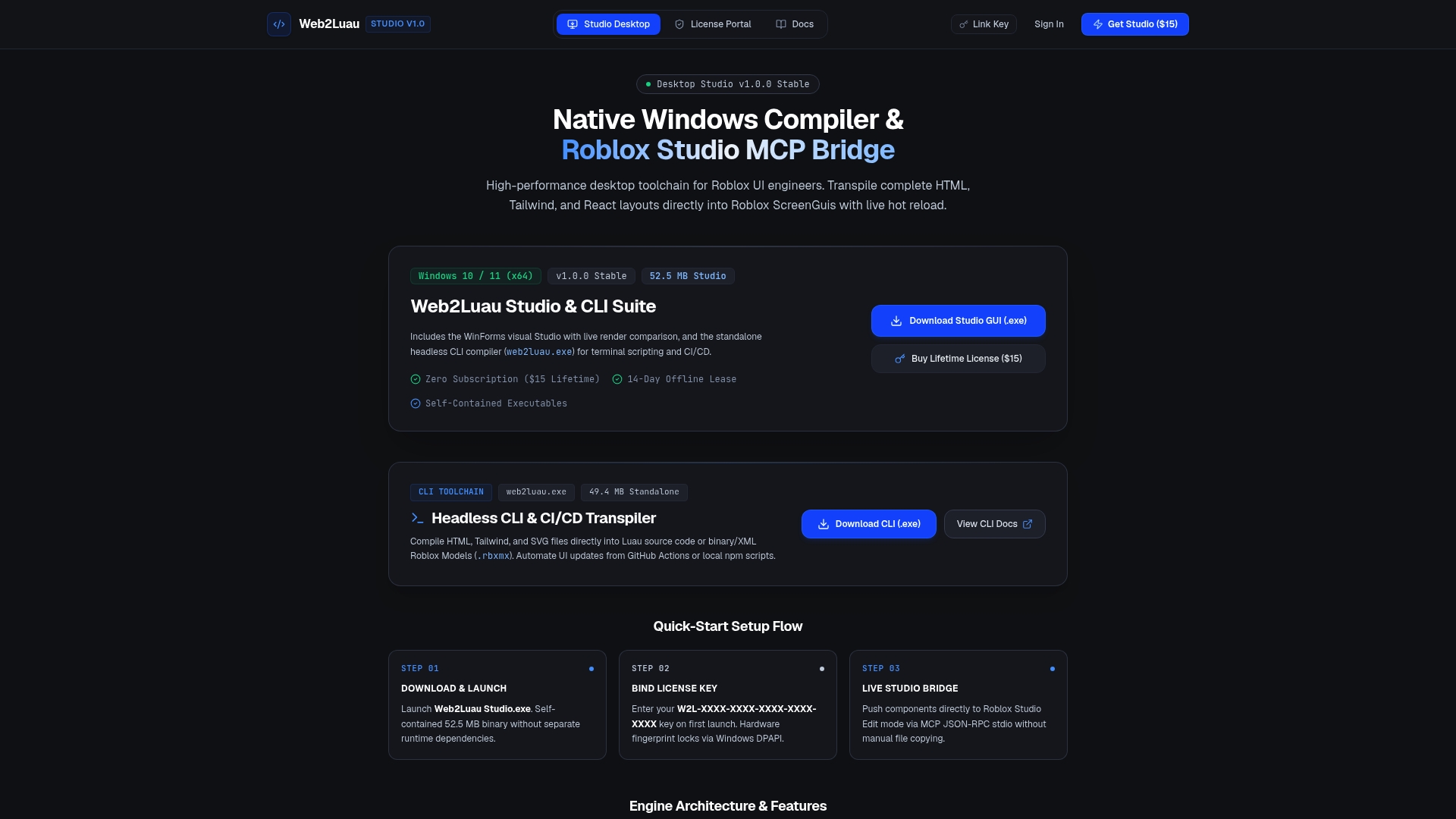
Such toolchains transpile layouts directly, may bridge live into Roblox Studio to show updates without manual file copying, and can include a hot reload feature to keep iteration fast even on complex interfaces. They may run as self-contained offline executables, use hardware-verified licensing instead of subscription models, and support CI/CD integration for teams that need automated UI updates baked into their build pipeline.
This fits studios and teams juggling frequent UI changes across multiple developers, not solo hobbyists doing a single export. If that's your team, check the Web2Luau engine and license portal and see whether a one-time license beats the hours you're currently spending on manual reimports.
FAQ
Can I Convert My Figma Design to Code?
Yes, but "code" means Luau for Roblox specifically, not general web code. Tools like Bloxig generate Luau to wire detected interactive elements, while most other plugins output UI instances without accompanying scripts.
Can I Export the Code From a Figma Design Directly?
Standard Figma export doesn't produce Roblox-ready code on its own. You need a dedicated plugin, such as RoImport, FigBloxUI, or UImporter, that translates the design file into Roblox instances or a Luau-generating pipeline like Bloxig.
Can Figma Designs Be Converted to HTML?
Figma designs can be converted to HTML through various web-focused export tools, but that's a separate use case from Roblox development. For Roblox specifically, the relevant conversion path goes to ScreenGuis and Luau, not HTML, which is why a toolchain like Web2Luau instead transpiles HTML and React layouts into Roblox UI rather than the reverse.
Is It Possible to Export a Figma File for Roblox Use?
Yes. Figma frames can be exported as .rbxmx files, JSON, or pushed directly into Roblox Studio via session-based plugins like UImporter, depending on which converter you use.
Do Any Figma to Roblox Tools Support Interactivity Out of the Box?
Most produce static UI that needs manual wiring afterward. Bloxig is the exception, using structure-based detection to generate Luau that makes buttons and similar elements clickable at import time.